AI-powered coding assistants are no longer the future — they’re here, and they’re rewriting the way we build software. If you’ve ever found yourself buried in Stack Overflow tabs, struggling with syntax, or just wishing you had a second pair of hands while coding, you’re going to love Cursor.
Cursor is an AI-powered code editor that brings intelligent code suggestions, automated debugging, and AI-driven pair programming right into your workflow. It’s like having an always-available coding buddy that helps you write, refactor, and debug code faster than ever.
This blog post is the first in a three-part series where we’ll explore Cursor and how it can transform your development process.
- Part 1 (this post): What Cursor is and why you should care.
- Part 2: A deep dive into Cursor’s features and how they work.
- Part 3: A hands-on guide to building an app with Cursor’s AI assistance.
What is Cursor?
Cursor is an AI-enhanced code editor designed to help developers write better code, faster. Think of it as an AI-powered IDE that integrates seamlessly with modern development workflows.
Key Features at a Glance:
- AI Code Completion — Get real-time, context-aware suggestions as you type.
- Smart Debugging — AI-powered bug detection and fixes.
- Seamless Integration — Works with major languages and frameworks.
- Code Explanations & Refactoring — Understand and improve code effortlessly.
Built with a combination of advanced AI models, Cursor doesn’t just autocomplete code — it understands what you’re building and helps you do it more efficiently.
Cursor vs. GitHub Copilot: What’s the Difference?
If you’re already using GitHub Copilot, you might be wondering: Why switch to Cursor? Both tools support multiple large language models (LLMs) but Cursor takes things a step further with:
1.A Full AI Code Editor, Not Just a Plugin
Copilot is an extension that enhances existing editors like VS Code or JetBrains.
Cursor is a standalone AI-powered IDE, built on a fork of Visual Studio Code, specifically designed to maximize AI’s potential in coding.”
2. AI Chat Seamlessly Integrated into the Editor
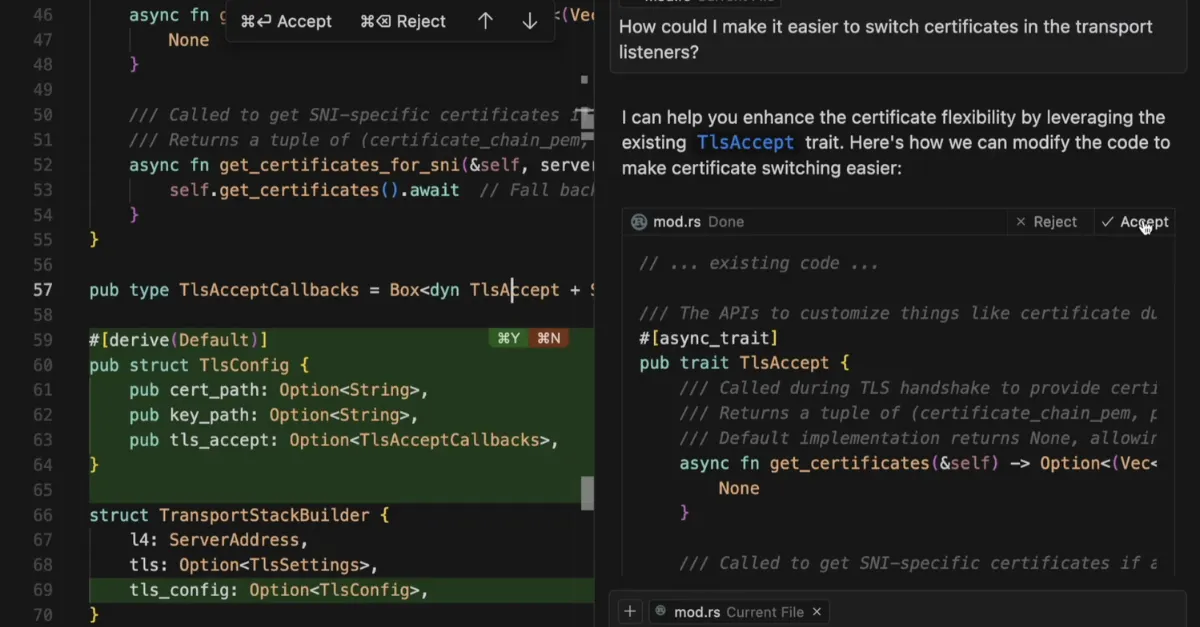
With Cursor, you don’t just get autocomplete — you get a ChatGPT-like assistant right inside your code editor.
Need a function explained? Stuck on a tricky bug? Just ask the AI directly, and get instant, context-aware insights and solutions — without ever leaving your editor.
3. Inline Debugging & AI Fixes
Cursor goes beyond simple code suggestions — it assists with debugging by identifying issues and proposing fixes directly within your workflow.
It understands your project context better than Copilot, making suggestions that fit your specific codebase.
4. Smarter Code Refactoring
It can rewrite functions for better performance, suggest best practices, and even explain why certain changes are needed.
5. A More Responsive & Customizable AI Experience
While Copilot is great for basic code completion, Cursor is built to be a true AI pair programmer, making it a better choice for developers who want deeper AI integration.
Why Should Developers Care?
- Less Time Debugging, More Time Building
We’ve all been there — staring at an error message, Googling for fixes, and sifting through outdated forum answers. Cursor’s AI debugging assistant suggests solutions instantly, helping you move forward without the usual frustration.
2. AI-Powered Pair Programming
Imagine having a coding buddy available 24/7 to suggest improvements, refactor your code, or even explain complex logic. Cursor acts as a virtual AI pair programmer, making coding more intuitive and efficient.
3. Smarter Autocomplete for Faster Development
Unlike basic autocomplete features, Cursor understands the context of your project. Whether you’re defining a function, working on a database query, or structuring an API call, Cursor predicts and generates code that fits seamlessly.
4. Works With Your Existing Tools
Already comfortable with VS Code? Since Cursor is a fork of VS Code, it retains full support for its extensions, themes, and keybindings — so you can switch without disrupting your workflow.
Using GitHub Copilot? You can still leverage Copilot alongside Cursor, though Cursor’s AI-powered coding features provide a deeper integration.
What’s Next in This Series?
This is just the beginning. In Part 2, we’ll take a deep dive into Cursor’s features, exploring how they work and how they compare to other AI coding assistants. Then, in Part 3, we’ll get hands-on and build an app from scratch using Cursor — so you can see its power in action.
🔔 Stay tuned — and if you want to start experimenting with Cursor right now, check out their official site:
Got questions or already using Cursor? Drop a comment below — we’d love to hear your thoughts! 🚀