AI-powered code editors aren’t just a futuristic concept — they’re here, and they’re changing the way we write software.
In Part 1 of this series, we introduced Cursor, an AI-enhanced code editor that takes software development to the next level with AI-assisted programming, smart debugging, and intelligent automation. But what really makes Cursor stand out?
In Part 2, we’re going deeper into Cursor’s core features — the tools that make it a true AI-powered IDE, not just another autocomplete plugin.
By the end of this post, you’ll see how Composer, Chat, Command-K, AI Rules, and Symbols work together to create a seamless, AI-driven development experience.
🛠️ Exploring Cursor’s Features
You can find all the feature´s tutorials here:
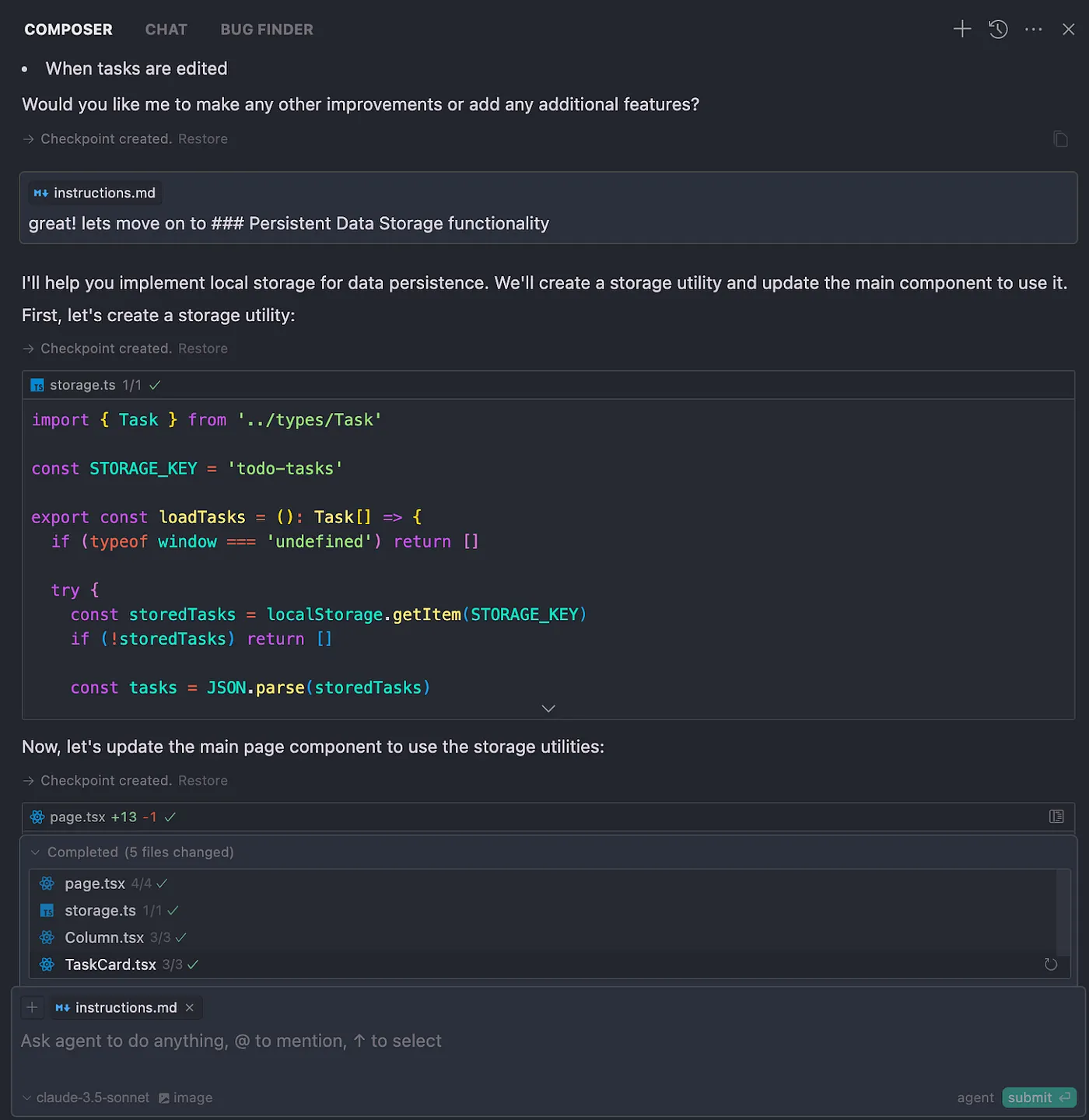
1️⃣ The Composer: AI-Driven Code Generation
💡 Think of Composer as your AI-powered coding assistant that lives in your editor.
Instead of manually writing every function or searching for snippets, Composer helps generate, modify, and extend your codebase — all without leaving your workflow.
2️⃣ Cursor Chat: Coding Assistance
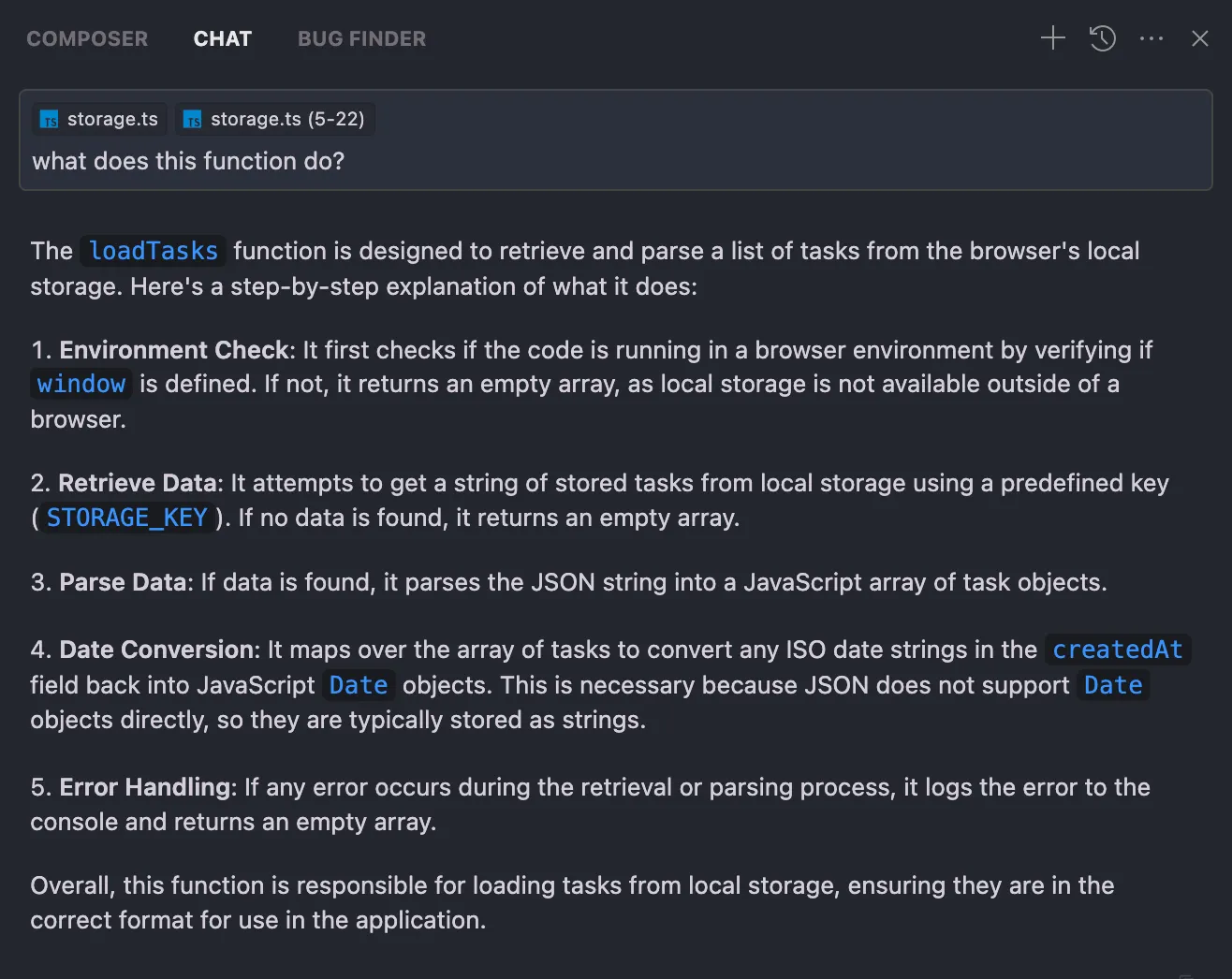
🗣️ Imagine having an AI pair programmer inside your editor.
Cursor Chat lets you ask context-aware questions about your codebase and get instant answers. Whether you need help debugging, refactoring, or understanding a function, it acts as your coding mentor, guiding you every step of the way.
✅ Example Use Case: Debugging & Refactoring Code
- Instead of searching through Stack Overflow, a developer can highlight a function and ask “What does this function do?”
- Cursor analyzes the function, explains it, and suggests improvements.
- Need a specific refactor? Just type “Can you add a useCallback hook?” — Cursor applies the change instantly.
3️⃣ Command-K: Instant AI Code Editing
⚡ Quick edits, instant results.
With Command-K, developers can modify or generate code on the fly — without switching windows or breaking focus.
✅ Example Use Case: Creating a New Component
- A developer types Cmd+K and asks Cursor to “Create a reusable button component with best practices”
- Cursor instantly generates the button component, ensuring it follows best practices.
- Need a quick fix? Cmd+K can edit or extend the component on demand.
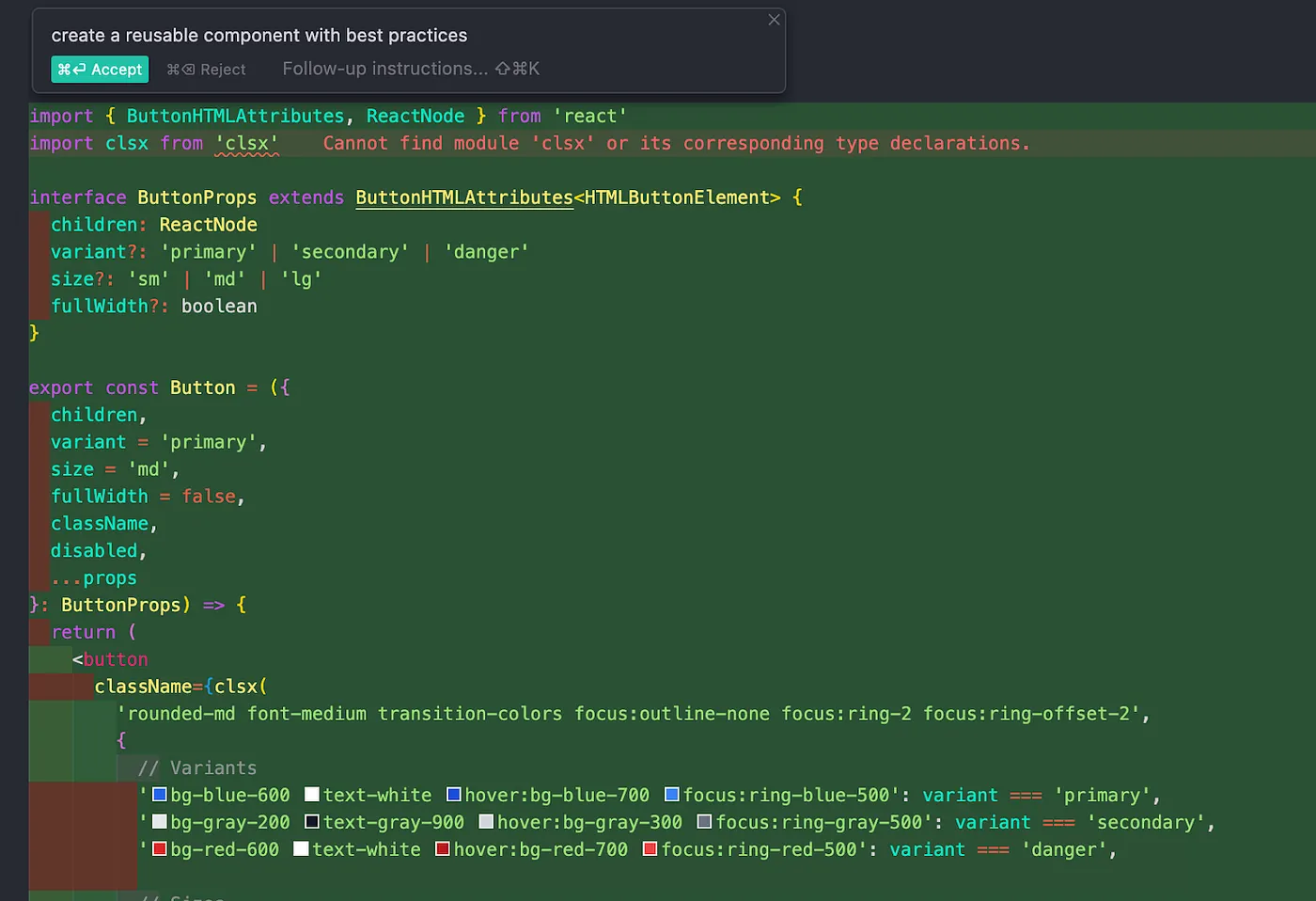
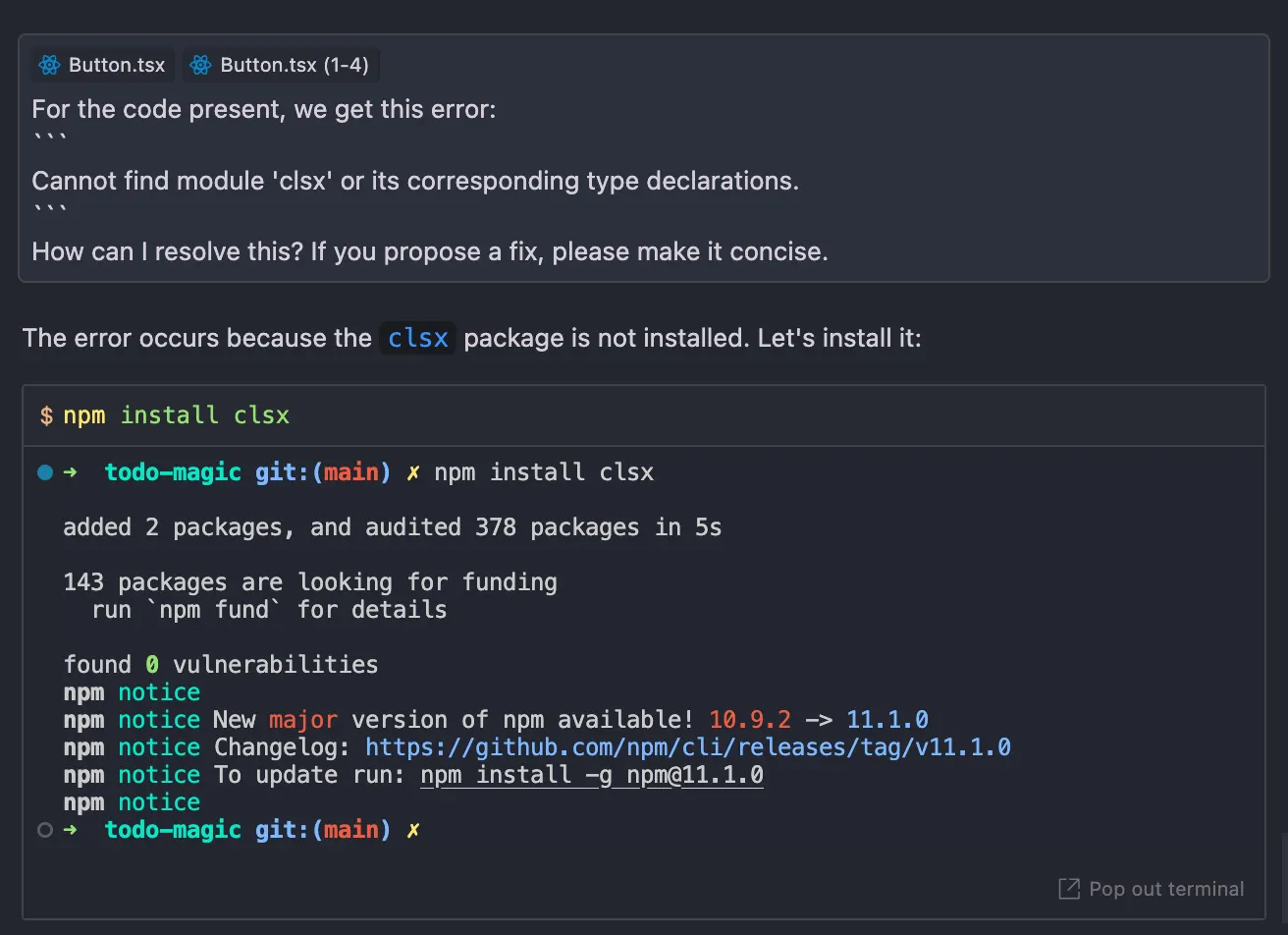
In the attached image, we can see that a module is missing. No worries — Composer can handle this for us. If we hover over the issue, there’s a ‘Fix in Composer’ button; clicking it will open the composer asking for help. Composer is capable of running commands directly in the terminal to fix these kinds of problems.
4️⃣ AI Rules: Customizing Cursor’s Behavior
🔧 Make AI work the way you want.
AI Rules let developers customize how Cursor behaves based on their project’s coding standards, framework preferences, and architectural decisions.
There are two types of rules: Global Rules, which are personal and tailored to your preferences, and Project Rules, which are stored in the .cursor/rules folder and can be committed to keep your entire team in sync.
You can find them under cursor settings or add a new project rule pressing CMD/Ctrl+Shift+P and type “New Cursor Rule”
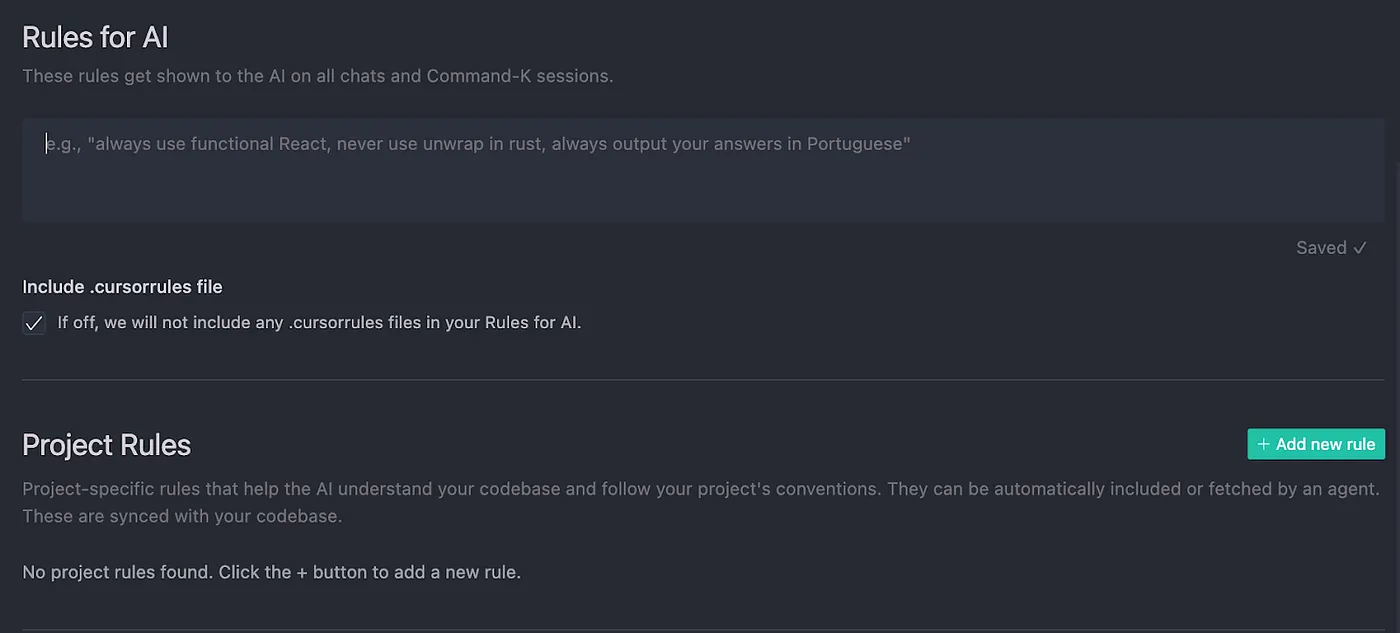
For rules inspiration you can visit https://cursor.directory/
5️⃣ Symbols: Enhanced Context Awareness
🔍 AI that understands your entire project.
Cursor’s Symbols feature allows developers to reference project files, functions, and documentation without leaving the editor. You can use @ symbols by typing @. A popup menu will appear with a list of suggestions, and it will automatically filter to only show the most relevant suggestions based on your input.
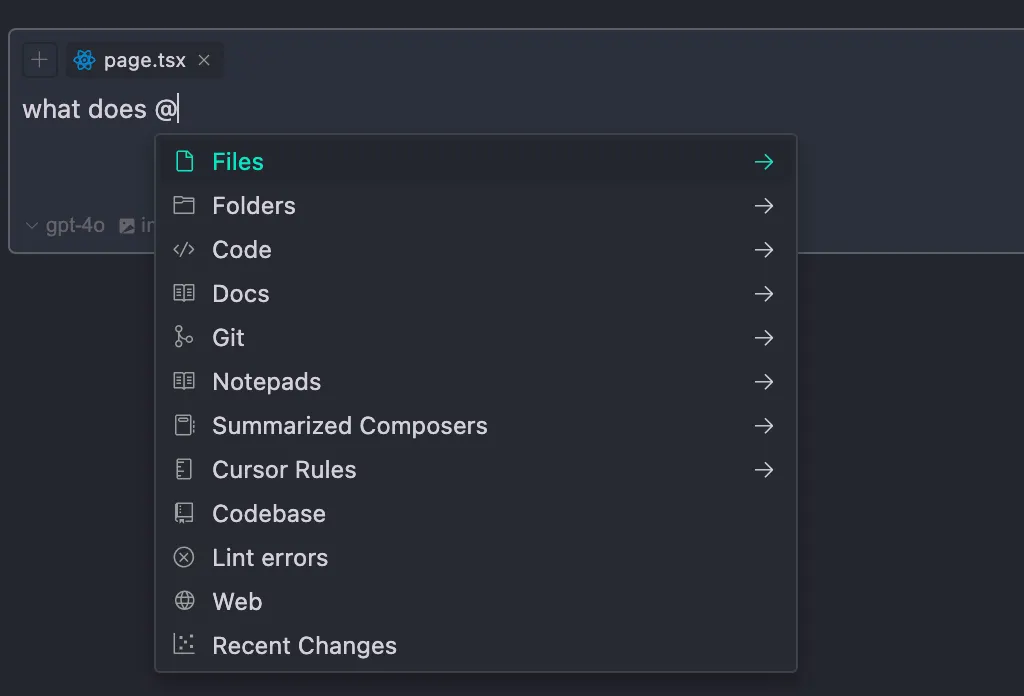
✅ Example Use Case: Fetching API Docs Without Leaving the Editor
- A developer needs to implement Stripe payments but doesn’t remember the API syntax.
- Instead of Googling, they use Symbols to pull Stripe’s documentation into Cursor’s context.
- Cursor understands the documentation and helps generate the correct API calls.
🚀 Why Cursor is the Future of AI-Powered Development
Cursor provides a full AI-powered development experience:
✅ It understands project context, allowing for smarter, tailored code suggestions.
✅ It can generate entire features, not just suggest individual lines.
✅ It offers deep AI integration, including chat, customizable rules, and command-based editing.
For developers who want AI-assisted coding that actually enhances their workflow, Cursor is the better choice.
🔜 Coming Next: Part 3 — Building an App with Cursor
Now that we’ve explored Cursor’s features, it’s time to put them into action!
In Part 3, we’ll build a small web app from scratch using Cursor AI, applying everything we’ve learned. Stay tuned!
🔗 Try Cursor AI now: Cursor AI Official Site
🔗 More AI development insights: White Prompt Blog
🚀 What feature excites you the most? Drop a comment below!