A practical setup with T3 Code and Tailscale for keeping agent sessions on an always-on machine while you connect from desktop or mobile
There is a particularly frustrating way to lose momentum while working with a coding agent: close your laptop.
You give the agent a large refactor, watch it inspect the repository, and step away while it works. Later, you open the laptop again and find a paused job, a broken connection, or a session that needs to be restarted. Nothing dramatic happened. The machine simply went to sleep.
That failure is easy to blame on the tool, but the underlying problem is architectural. We are asking one portable device to be the interface, the development environment, the agent host, and the keeper of every active session. Then we expect long-running work to survive when that device changes networks, loses connectivity, or goes into a backpack.
There is a cleaner arrangement: let the laptop be the screen, and let another machine own the work.
The laptop is doing too many jobs
A chat response may take seconds. A useful coding-agent task can take much longer. The agent may need to map a repository, edit several files, run a build, wait for tests, inspect failures, and try again. Some tasks also stop for approval before continuing.
Those workflows need a stable environment. A laptop is designed for mobility, not persistence. Closing the lid usually suspends local processes and can drop their network connections. Even if the session recovers, the interruption is enough to make unattended work unreliable.
The usual workaround is to keep the laptop awake. That helps, but it does not address the real coupling. The task still depends on the device you carry everywhere.
Traditional SSH solves part of the problem by moving the shell to another machine. It is still an excellent tool, especially when paired with the remote-development features in editors such as VS Code, Cursor, or Zed. But a terminal is not always the best control surface for agent work. Threads, approvals, diffs, provider selection, and access from a phone are easier to manage through an interface built for them.
Separate the interface from the execution host
The architecture is simple:
- An always-on machine stores the repository and runs the agent CLI, development tools, and T3 Code server.
- Your laptop, desktop client, browser, or phone connects to that server.
- Tailscale provides the private network between those devices.
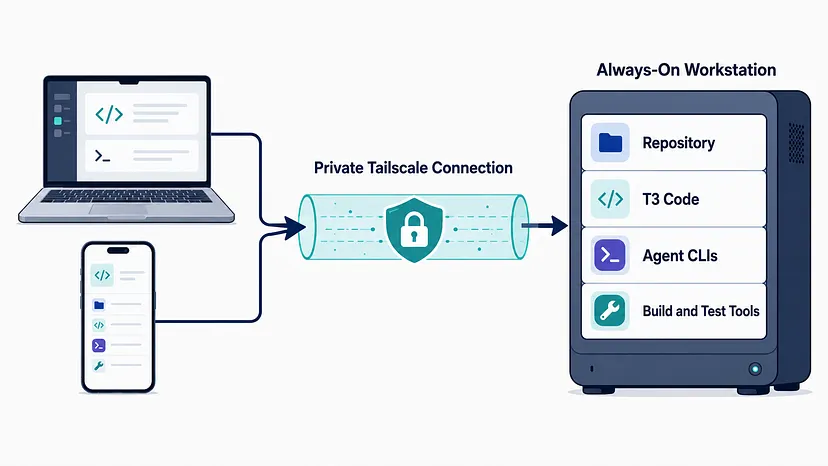
The client device displays and controls the session. The host owns the files, tools, and running processes.
This distinction matters. Closing the client should end your interaction with the task, not the task itself. As long as the host remains powered on, connected, and running the server, the execution environment is still there when you return.
In many coding-agent setups, model inference still happens in the provider’s cloud. The always-on host is not necessarily replacing a GPU server. Its job is to provide persistence: the same files, credentials, dependencies, terminals, and processes remain available throughout the task.
Why T3 Code and Tailscale work well together
T3 Code describes itself as a control surface for coding agents. At the time of writing, it supports Codex, Claude Code, Cursor, Grok Build, and OpenCode. It can run as a desktop application or serve web, desktop, and mobile clients from another machine.
That makes it useful as a common front end for agent work. It can reduce the need to jump between separate interfaces, and it supports multiple provider or account configurations. There are still differences between providers, so it is better to think of T3 Code as one control surface rather than a magical merger of every provider’s history and permissions.
Tailscale creates an encrypted network between approved devices using WireGuard. In this setup, the workstation and client devices join the same tailnet and communicate through private addresses. You do not need to forward a public port on your router or place the T3 Code server directly on the public internet.
T3 Code also has documented support for remote access through Tailscale, including HTTPS endpoints, pairing links, and QR codes for mobile clients. The pieces fit together without requiring a custom VPN or reverse-proxy configuration.
A practical setup
1. Choose the host
Use a machine that can stay on while you are away. It might be your main workstation, a small Linux computer, or a development server your company already manages.
The host should have enough resources to run the repository’s normal workload. That includes builds, tests, containers, local databases, and any other tools the agent may invoke. More importantly, it should be maintained like a server rather than treated like an unattended personal computer.
Enable disk encryption, automatic security updates where appropriate, and a screen lock. Configure the operating system so the display may turn off without putting the entire machine to sleep.
2. Install the agent tools and T3 Code on the host
Install and authenticate the provider CLIs you plan to use. T3 Code controls the agents configured on that machine, so the host is where their credentials and local configuration live.
The quickest way to test the server is:
npx t3@latestYou can also use the desktop application. The project is moving quickly and its own README warns that it is still early, so begin with a noncritical repository and expect occasional rough edges.
3. Put every device on the same tailnet
Install Tailscale on the host and on each laptop, tablet, or phone that should connect to it. Sign in and confirm that the devices can see one another.
For a personal setup, that may be enough. For a team, define access rules instead of allowing every device to reach every service. Encryption protects traffic in transit, but access policy determines who is allowed to connect in the first place.
4. Pair the client
If the T3 Code server is already running, its remote-access documentation provides a pairing command that publishes the server through Tailscale Serve and generates a QR code:
npx t3 pair --tailscaleFor a headless server, you can start it with Tailscale HTTPS enabled:
npx t3 serve --tailscale-serveThe desktop application provides the same general flow through Settings → Connections. Enable network access, choose the Tailscale HTTPS endpoint, and create a pairing link for the client device.
Pairing links and tokens should be treated like passwords. Do not leave them in shared chat channels, screenshots, or documentation. T3 Code provides authentication controls for reviewing and revoking sessions later.
5. Make persistence real
Remote access is not enough if the host sleeps, reboots without restarting the service, or loses power.
On a Linux machine with systemd, T3 Code can be installed as a background service:
npx t3@latest service installFor other operating systems, use the startup and power-management options appropriate to the machine. Test the setup instead of assuming it works. Start a disposable task, disconnect the client, switch networks, reconnect from another device, and verify that the thread and process behave as expected.
What changes in daily work
Once the host owns the session, the devices around it become interchangeable.
You can start a repository-wide task from your desk, close the laptop, and check the thread later from a phone. You can reconnect from a lighter laptop without cloning the repository again or rebuilding the environment. If you prefer a full IDE, you can still connect to the same host through SSH or an editor’s remote-development feature while using T3 Code to manage the agent.
This is also a better answer to fragmented tooling than adding another browser tab. Supported providers and accounts can be configured around the same host and control surface. The repository, project tools, and long-running processes remain in one environment even when the device in your hands changes.
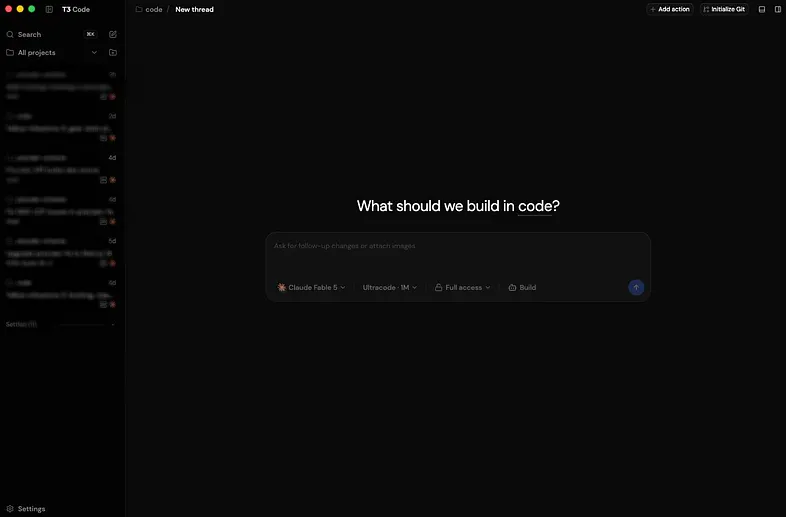
A mobile client is useful for checking progress, answering a question, or approving the next step. It is not meant to replace a full development workstation.
Security still needs deliberate choices
“Private network” should not be read as “nothing can go wrong.” The host contains source code, provider credentials, and a tool that may be authorized to run commands. Treat access to it accordingly.
At a minimum:
- Restrict the T3 Code service to the private network. Do not expose it broadly on a public interface.
- Use Tailscale access controls to limit which users and devices can reach the host.
- Revoke old T3 Code sessions and remove devices that are no longer trusted.
- Keep the host patched, encrypted, backed up, and physically secure.
- Review agent permission modes before allowing unattended work.
- Get organizational approval before using the setup with company or client repositories.
The architecture reduces one kind of exposure, opening a development service directly to the internet, but it does not remove the need for endpoint security or sensible agent permissions.
What this setup does not solve
It does not make agents infallible. A task can still wait for approval, fail a test, exhaust a provider limit, or stop because of an application update. A power or internet outage at the host will still interrupt access.
It also does not eliminate infrastructure cost. It moves part of the development environment away from the laptop and onto a machine that must be purchased or repurposed, powered, maintained, and eventually replaced.
For that reason, I would not justify this architecture with cheaper laptops alone. A lighter client device may be possible, especially if builds and containers run remotely, but the clearer return is operational: fewer interrupted sessions, a consistent environment, and the ability to reconnect from more than one device.
The laptop becomes a window again
The point is not to spend the entire day coding from a phone. It is to stop making the phone or laptop the lifetime owner of work that may continue long after you put the device away.
T3 Code gives the agent workflow a remote-ready control surface. Tailscale gives your devices a private route to it. An always-on host gives the session somewhere stable to live.
Start small. Use one noncritical repository and one task long enough to expose connection problems. Close the client, leave the network, reconnect from another device, and see what survives. That test will tell you more than another week of keeping your laptop awake out of habit.
Closing the lid should pause your attention, not your development environment.
What is the longest agent task you still run entirely on a laptop simply because that is where the setup started?