Like many designers, I rely on Figma almost daily — not just to design screens, but to map out app flows, create prototypes, and organize complex user journeys. My process is solid. Structured. Efficient.
But there’s always that one step that slows me down: the pre-flow organization.
Before I even get into connecting cards or refining states, I spend time tagging and color-coding blocks by epic or concept. It’s not messy. It’s just manual. And repetitive. Which got me thinking could I automate that?
I use Cursor every day as part of my development workflow, and I realized it could be the perfect assistant for building a Figma plugin to handle this step. Not in theory. In practice.
Here’s how that idea turned into a real plugin that now saves me time every single week.
Speeding Up What’s Already Working
Let’s be clear my Figma flows weren’t chaotic. I wasn’t drowning in layers or confused by what went where. But I was spending too much time tagging cards manually, reapplying colors, and double-checking categories. That part of the process wasn’t creative. It was mechanical.
So instead of continuing to do it manually, I turned to Cursor not as a one-time experiment, but as part of the way I already work.
Within Cursor, I described the plugin I needed in detail: something that could scan my selected cards, find the ones with #epic tags, and assign a consistent color for each unique epic name.
Designing the Plugin with Cursor
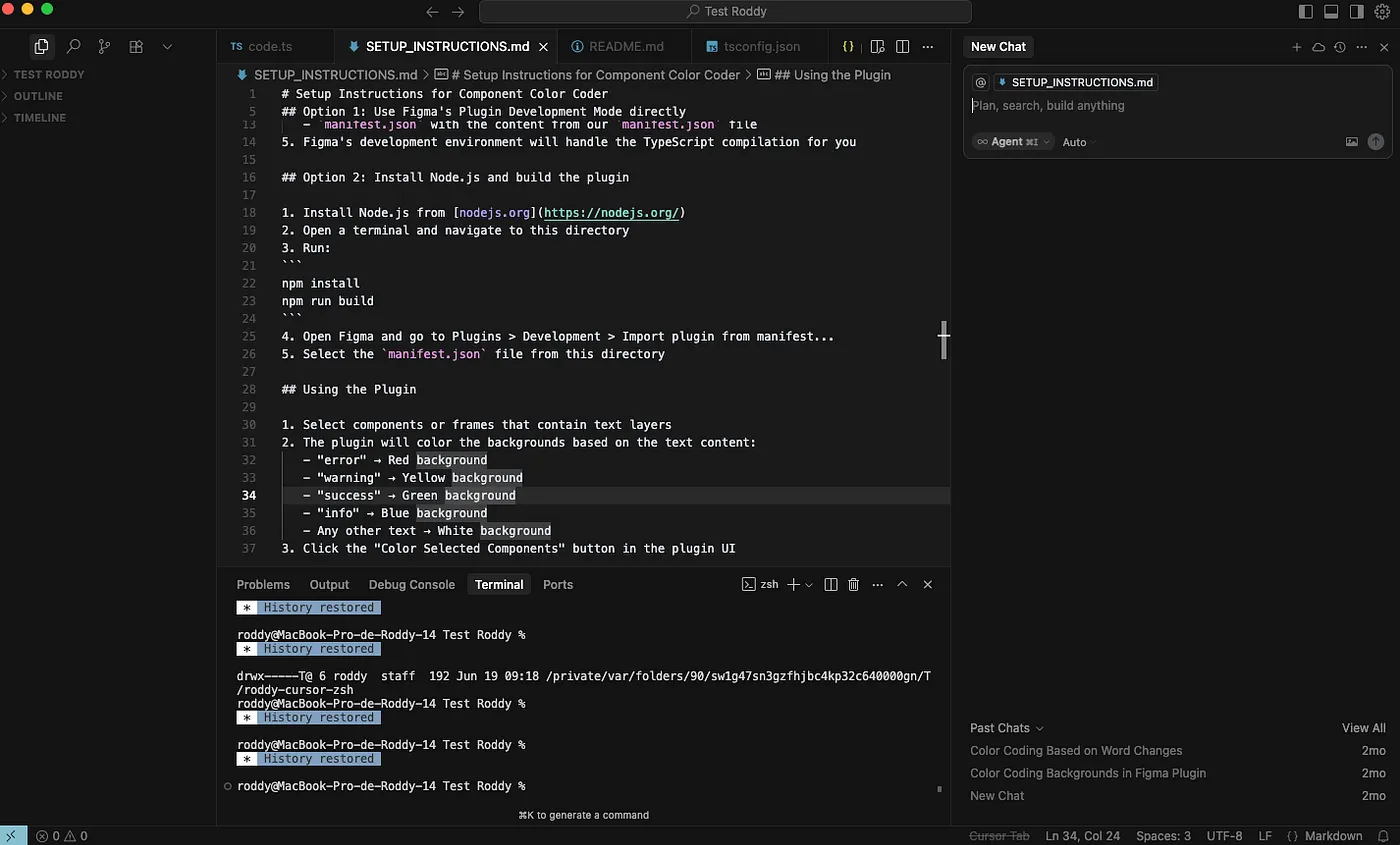
I dropped into Cursor and wrote a structured prompt (shared at the end of this post). Cursor quickly generated the entire plugin logic in TypeScript, handling the Figma API, building a UI, and even planning for edge cases.
We iterated back and forth I refined how it handled layers without fill, asked for better logging, improved the UI. Cursor responded in seconds. It wasn’t coding for me. It was coding with me.
What the Plugin Does
Once the plugin is loaded in Figma, I just select the cards or frames I want to organize. When I click the “Color Selected Components” button, the plugin analyzes the text in each component, identifies the #epic tags, and applies background colors accordingly.
Same epic = same color.
Different epic = new color from the palette.
Here’s the plugin interface before you click anything:
And here’s the result just seconds later clearly grouped, beautifully colored, and much easier to navigate:
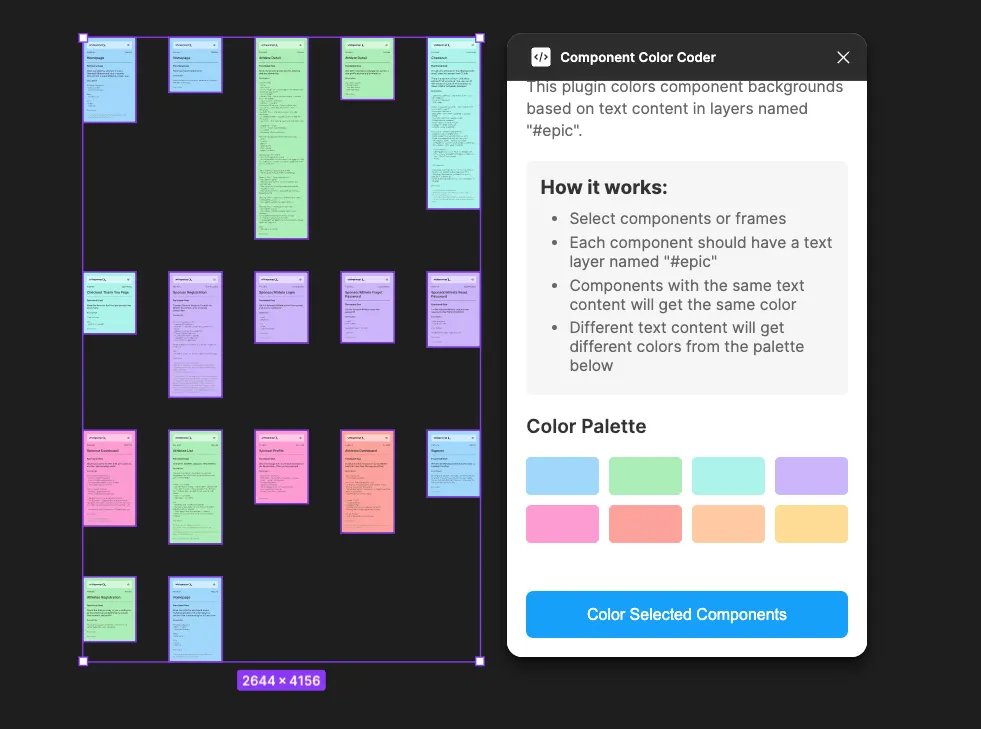
Even better? The color assignment is consistent across plugin runs, so your epics don’t shift hues every time you revisit the file.
And here’s a peek at what it looked like building the logic in Cursor:
Plugin Description
Component Color Coder is a Figma plugin that automatically color-codes component backgrounds based on specific text content. Specifically, it detects text layers named #epic and assigns colors based on their values.
Key Features:
- Auto-detects
#epictext layers (case-insensitive) - Assigns consistent colors for identical epics
- Uses a soft 8-color pastel palette
- Logs processed components and skipped ones
- Provides visual feedback and progress stats
How It Works:
- Select frames/components
- Plugin analyzes text layers labeled
#epic - Same epic text → same background color
- Different epic text → unique color from the palette
- Logs what it colored, what it skipped, and what matched
It doesn’t just make your file look better it makes it faster to understand.
Prompt Used in Cursor
Create a Figma plugin called "Component Color Coder" that automatically color-codes component backgrounds based on specific text content within those components.Core Functionality:- The plugin should look for text layers specifically named "#epic" (case-insensitive) within selected components or frames- It should assign background colors to components based on the text content found in these "#epic" layers- Components with identical text content should receive the same background color for consistency- Different text content should receive different colors from a predefined paletteTechnical Requirements:- Built using TypeScript with proper Figma plugin typings- Use a predefined color palette of 8 soft, pastel colors: light blue, light green, light cyan, light purple, light pink, light coral, light orange, and light yellow- Handle edge cases like mixed fills, components without fills, and missing "#epic" text layers- Provide comprehensive error handling and user feedback- Include detailed console logging for debugging purposesUser Interface:- Clean, modern UI with clear instructions- Display the color palette so users know what colors will be used- Simple "Color Selected Components" button- Show processing statistics (items processed, colored, skipped, etc.)- Provide clear instructions on how to use the pluginUser Experience:- Plugin should remain open after processing so users can color multiple sets of components- Provide notifications for success, errors, and processing status- Skip components that don't have "#epic" text layers or can't be colored- Maintain color consistency across multiple plugin runsFile Structure:- manifest.json with proper plugin configuration- code.ts for main plugin logic- ui.html for the user interface- package.json with TypeScript and Figma plugin dependencies- README.md with installation and usage instructionsThe plugin should be production-ready with proper error handling, user feedback, and a polished user interface that makes it easy for designers to quickly color-code their components based on epic text content.
Final Thoughts
This wasn’t some massive productivity transformation. It was a small, thoughtful upgrade to a process I already had made faster, clearer, and more enjoyable by using a tool I already trust.
Cursor didn’t replace me. It amplified my work. And if you’re already using Cursor (or thinking about it), don’t wait for the perfect idea to try it out. Start with something small. Something personal. Something that speeds up your work in a meaningful way.